7 Techniques To Spot Phishing Websites
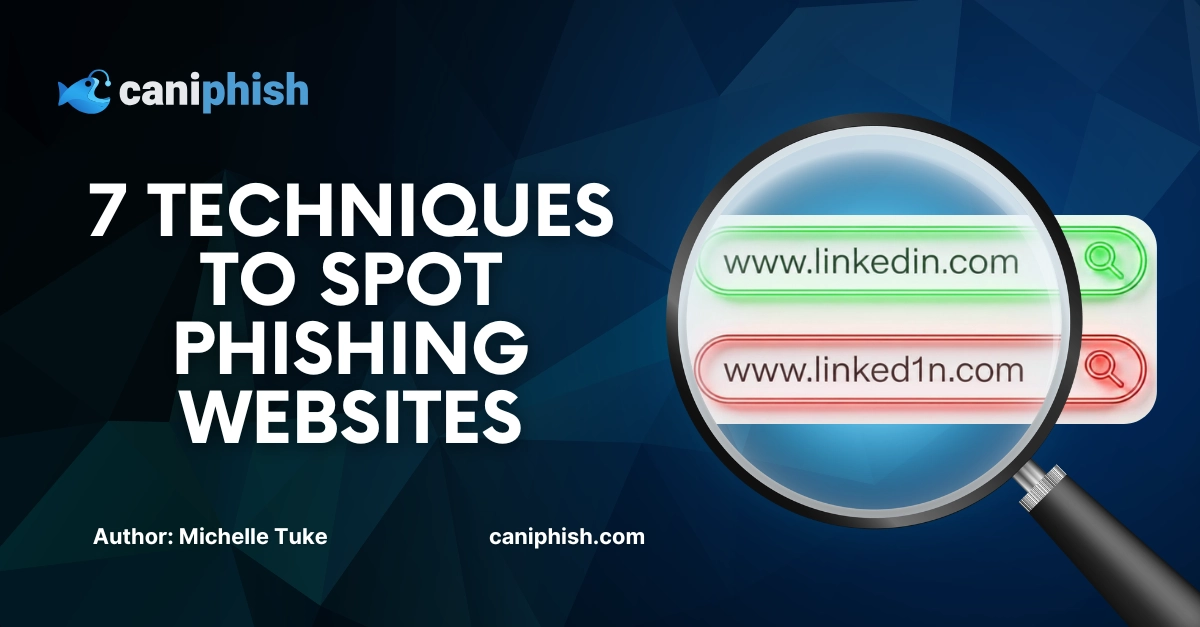

Are you looking for simple ways to spot a phishing website before you accidentally gift-wrap your login details for a scammer? Phishing websites are one of the most common ways credentials get stolen, and they've gotten a lot harder to spot in recent years
In this blog, we’re breaking down 7 practical techniques to help you identify phishing websites.
Because, unfortunately, attackers have upped their game. Modern phishing websites can look cleaner, more convincing, and far less suspicious at first glance. They are no longer always packed with obvious errors that stand out immediately.
The good news is that phishing websites usually leave clues behind, if you know what to look for.
Let's dive in.
1. Inspect The Domain Name
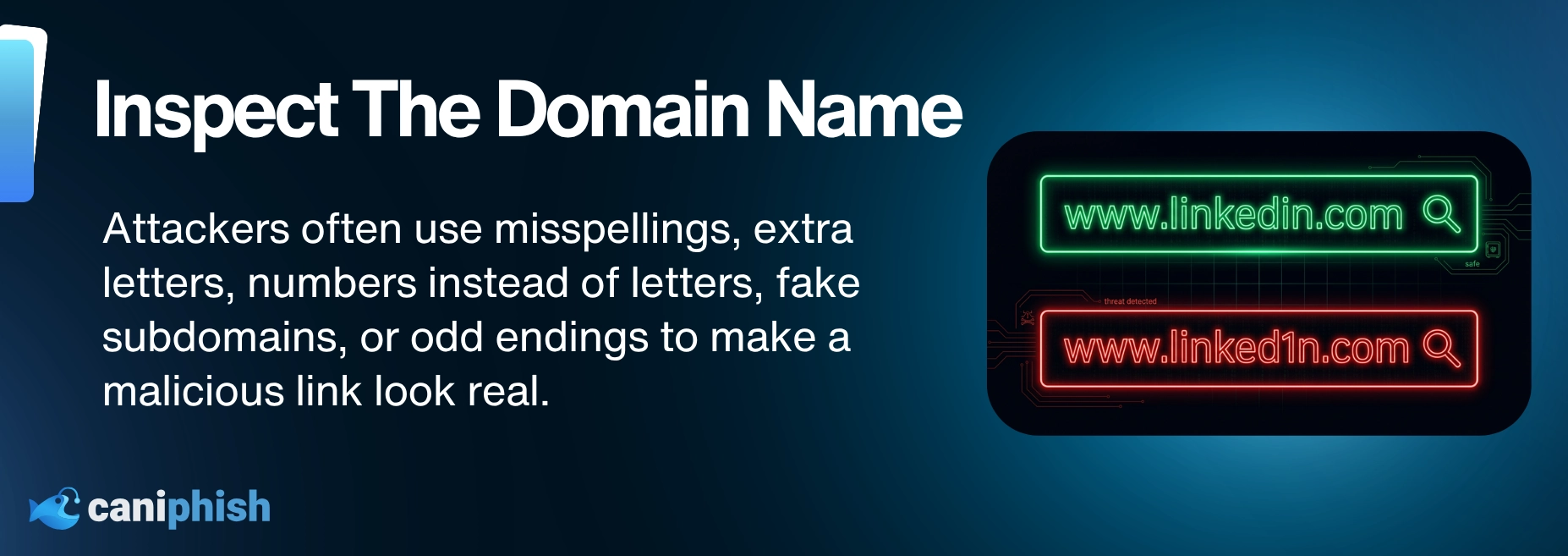
The domain name is the part of the website address that identifies who actually owns the site. Attackers manipulate it because most people don't read it closely.
This is one of the first things you should do when you land on a website. Inspect the domain name.
Attackers often create domains that look pretty close to the real thing. They are not trying to win a design award here. They just need the address to look believable long enough for you to keep moving.
One of the most common tricks is using spelling mistakes or tiny character changes to make a fake domain look like the real website. This is known as typosquatting.
These tiny changes are easy to miss. Be honest, would you notice if a domain replaced an “o” with a zero? Added one extra letter? Or removed one while you were rushing through your inbox? Probably not.
For example:
- Real Domain: dropbox[.]com
- Fake Domain: dropb0x[.]com
- Real Domain: linkedin[.]com
- Fake Domain: linked1n[.]com
- Real Domain: netflix[.]com
- Fake Domain: netflx[.]com
Attackers can also use lookalike characters from other alphabets to create domains that appear almost identical to real websites. This is called a homograph attack. So the domain may look right to you, while your browser sees something else entirely.
You can see how well this works.
Tiny change = big problem
Subdomains can also be a trap. A link might start with words like secure, login, or verify, which makes it feel safe at a quick glance. But those words don’t prove anything. The part you really want to check is the main domain, not the safe-sounding words placed before it.
The ending of the website address matters too. This is called the top-level domain, or TLD, and it’s the little bit at the end, like .com, .org, and .net. Not every unusual TLD is malicious, but if the website is pretending to be a well-known brand and the domain name ends in an odd way, slow down.
People tend to quickly scan links rather than read them. Attackers only need you to be distracted for a few seconds.
A good rule of thumb is simple: look at the actual domain. Not just the words around it.
2. Your Password Manager Doesn’t Auto-fill
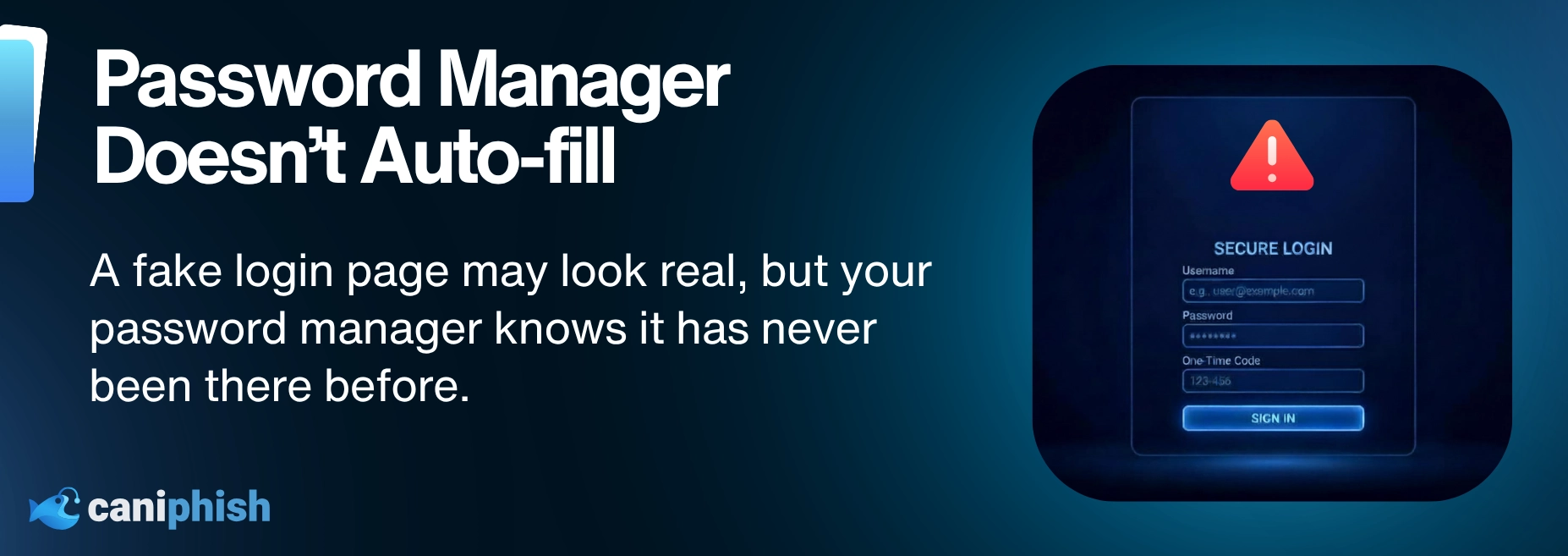
A password manager stores and auto-fills your login details for sites you've used before. That makes it surprisingly useful as a phishing detector.
This clue appears when your password manager suddenly refuses to auto-fill on a website you think you’ve previously visited.
For example, you receive an email that appears to be from LinkedIn saying someone has sent you a message or viewed your profile. You click the link and land on a LinkedIn-style login page, and at first glance, everything looks normal.
But then your password manager does nothing
No saved login. No auto-fill. No helpful “yep, I’ve been here before” moment.
That’s when you need to pause. Don’t ignore it. Don’t think, “Ah, I’ll just chuck in my login details to get around it.”
If this happens, it may not be the real LinkedIn website, so don’t enter the password manually. Instead, open a new tab, go to LinkedIn directly, and check your account that way.
3. The Content Feels Off
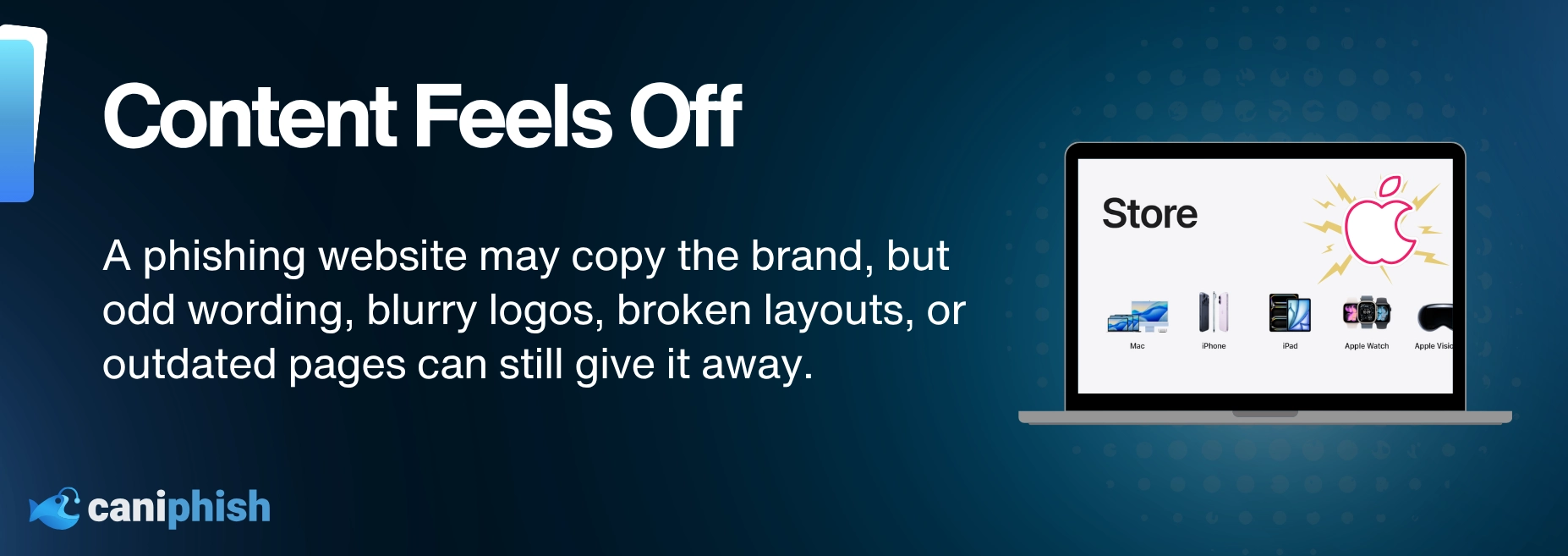
This one can be useful, but it is becoming less reliable as phishing technology improves.
Sometimes a website gives off subtle signs that something is off. For instance, the layout might look outdated. The logo doesn’t look quite right.
Say you open what is supposed to be a Microsoft 365 document, but the page feels off. The logo looks wrong, there’s no proper file details, and there's a button that says something like, “Access Document Now.” Could it be harmless? Maybe. Should you slow down before entering your login? Absolutely.
The real Microsoft pages are clean, consistent, and boring, as enterprise software often is.
However, this technique has limits. Real websites have face-lifts all the time. And modern phishing kits can closely mimic legitimate pages. Fake login pages can even look more polished than half the internal company portals people use every day.
So definitely use design clues as one signal. Just not your whole detection strategy.
4. Unexpected Or Unnecessary Login Requests
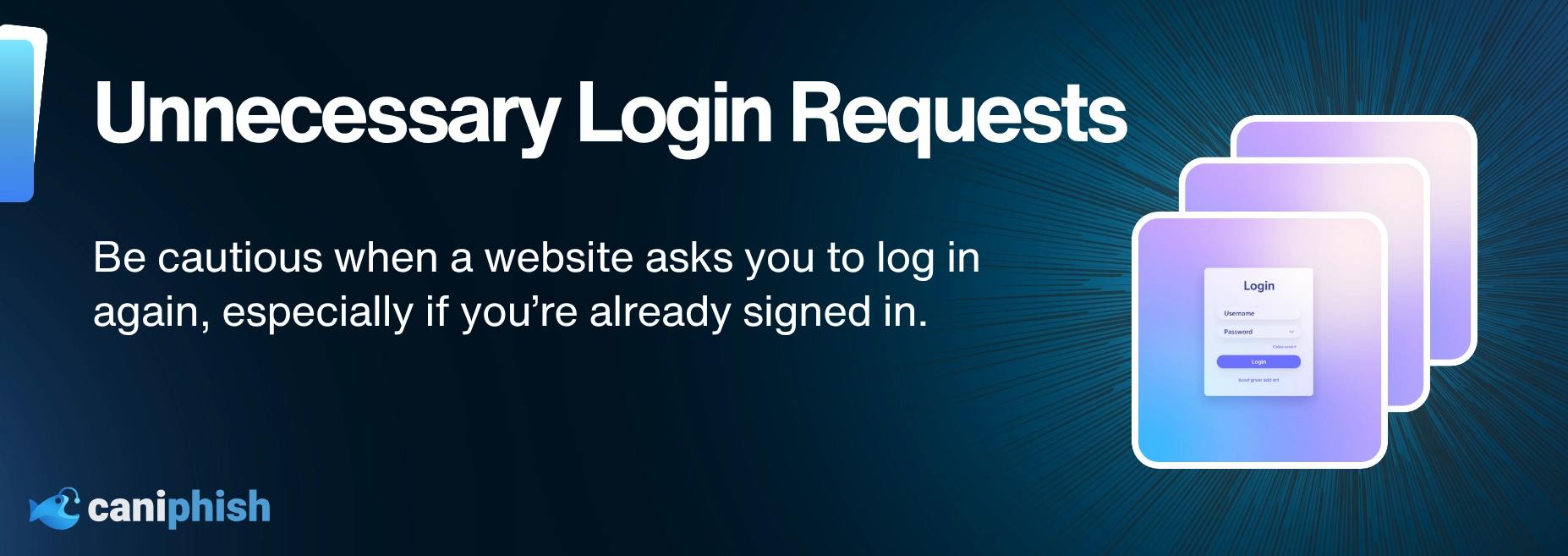
Another red flag is when a site asks you to log in even though you’re already logged in.
For example, say you were waiting for a parcel. You might get a text or email explaining that there has been an issue with delivery and that you should click the link for more details. So you click the link.
The page uses familiar branding to look legitimate, but before you can view the tracking details, it asks you to log in to your email.
That's your cue. Why does a delivery service need your email password?
It doesn’t.
Phishing websites use fake login pages to steal credentials.
The best option is to go to the courier’s official website and punch in the tracking number yourself. Yes, it takes longer because it seems to contain a billion digits, but it is the safer habit to form.
5. Unexpected Website Redirects
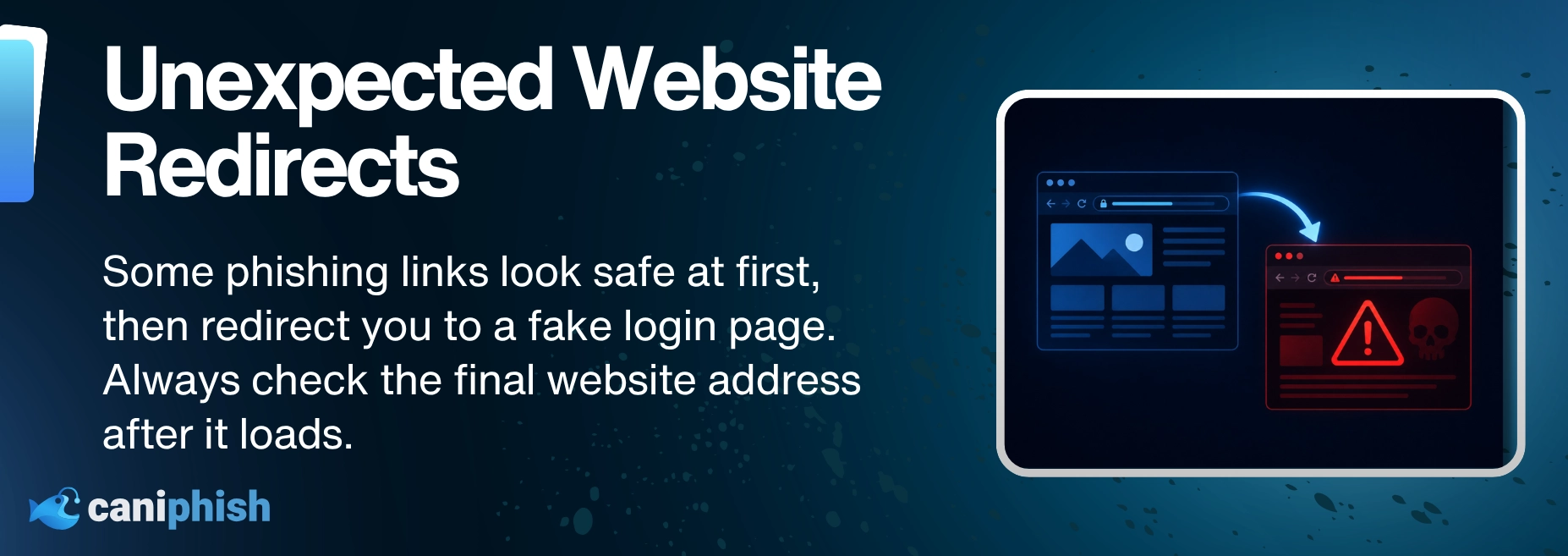
A redirect is when your browser is sent from one website to another, often without you noticing. Attackers use redirects to hide where you're really being taken.
The original link can look harmless, while the final page is anything but. So you think you’ve clicked on one thing, your browser does a few quick hops, and suddenly you’re on a fake login page controlled by an attacker.
It can happen quickly, and it is easy to miss if you are not watching the address bar. That's why it is worth checking the final website address after the page loads, not just the link you clicked at the start.
If the domain changes unexpectedly, especially before a login page appears, stop before entering anything. Close the page and go to the real website directly.
Because if your browser starts taking scenic routes through the internet, it is worth asking where it is actually taking you.
6. Unusual Action Requests
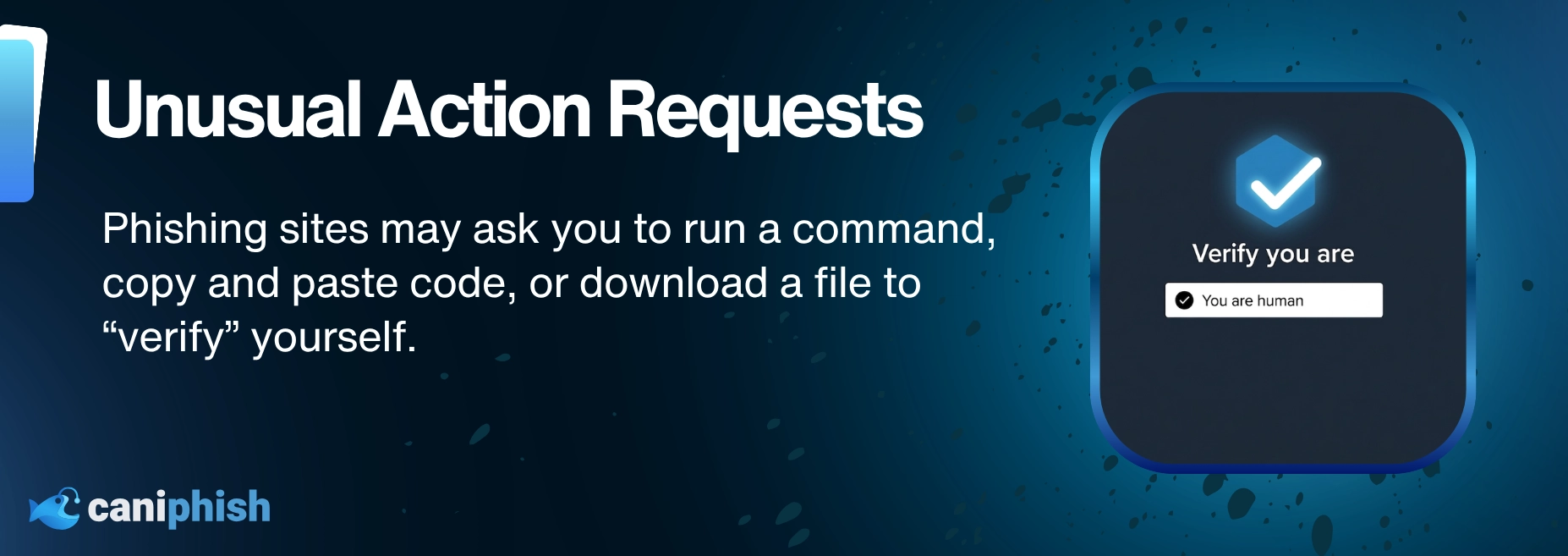
Attackers have become more creative over the years, and modern phishing websites do not always go straight for your password. Some try to trick you into doing something strange instead.
That might mean asking you to run a command to verify your device or download a file to fix an issue.
The “run this command” trick is often referred to as a ClickFix-style attack. This is when a website pretends there is an issue with a security check or verification process, then tries to get the user to manually run something harmful on your device.
For example, you might land on a page that says something like, “Confirm you are human. Copy this command and run it to complete verification.”
A normal CAPTCHA might ask you to tick all the images of crosswalks or traffic lights. Yes, I can feel the eyeballs rolling from here. Everyone has had to do this at some stage. Annoying? Yes. Harmful? Not usually.
But if a verification page asks you to run a command, copy and paste code, or download a file before continuing, that is when the alarm bells should start ringing.
A normal website should not need you to run commands or download mystery files just to prove who you are. That is not support. That's cybercrime with instructions.
7. Don’t Trust HTTPS Alone
You know those scary browser warnings that pop up and say something like, “This connection is not secure” or “Attackers might be trying to steal your information”?
Very calming.
These warnings usually show up when the connection or security certificate has a problem. In other words, your browser has seen something dodgy and is trying to stop you from making it worse.
So yes, HTTPS and the little padlock matter.
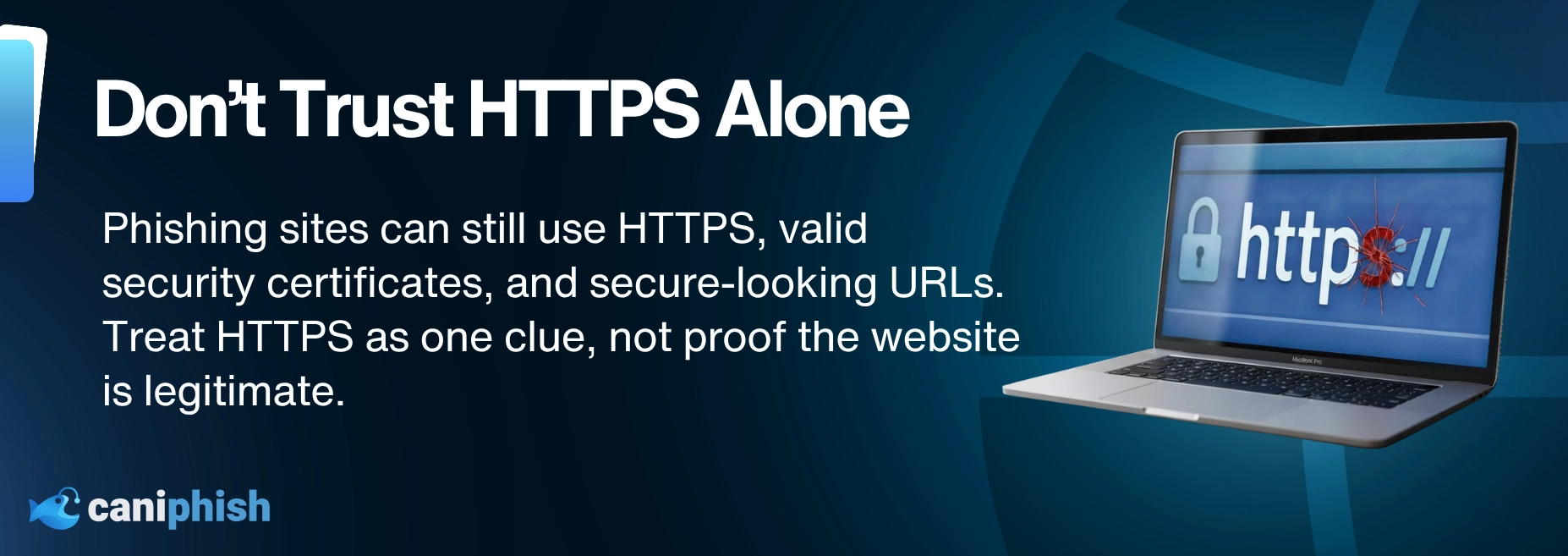
But here’s the catch: HTTPS does not mean the website itself is legitimate. HTTPS only confirms that the connection is encrypted between your browser and the site. It says nothing about who owns the site or what they plan to do with your information.
Phishing websites can use HTTPS, too. Attackers can create clean-looking pages with valid certificates, professional designs, and secure-looking URLs. The secure-looking URL only means the connection is encrypted. It does not mean the website is run by trustworthy people.

Step Into The Mind Of A Hacker
The Social Engineer is a high-stakes, turn-based cyber game where you play as an up-and-coming criminal mastermind.
Play now!Key Takeaways
So there you have it.
7 practical ways to spot a phishing website before it tricks you into handing over your login details, payment information, or anything else attackers are trying to steal.
The hard part is that phishing websites used to be much easier to spot. They were often badly built, full of spelling errors, and had obvious mistakes like “Your Account Has Been Suspend.”
Now, some are polished. Some use HTTPS. Some copy the brand, logo, colors, and layout almost perfectly, which is why looks alone are not enough.
So slow down. Refer back to these techniques whenever something feels off. Trust your gut, check the details before entering anything, and when in doubt, go directly to the official website instead.
Because when it comes to phishing websites, a few seconds of caution can save you from a very long afternoon with IT.

The Top 13 AI Documentaries In 2026
Uncover the dark side of artificial intelligence, minus the Hollywood lasers.
Check out our top picks
An Operations Analyst on a mission to make the internet safer by helping people stay a step ahead of cyber threats.