The 12 WORST Cybersecurity Tips (Common Misconceptions)

Bad cyber advice is like a photocopy of a photocopy. Each time it gets repeated, it loses accuracy but gains confidence.
In this blog, we are calling out 12 common cybersecurity “tips” people say with total confidence. They feel comforting, they sound legit, and they regularly get people in trouble.
For each one, we will break down what’s wrong with it and what you should actually do instead.
Let’s dive in.
1. A Strong Password Does The Trick
Everyone has a relative who’s convinced “Summer2026!” is a strong password because it has an exclamation mark and that somehow makes it “secure.”
A strong password is great, but it’s not a force field. Attackers often don’t need to crack passwords anymore. They steal them through breaches, phish them, reuse them from other sites, or trick you into entering them on a fake login page that looks identical to the real one. Even the strongest password on earth will not save you if you hand it over.
What to do instead:
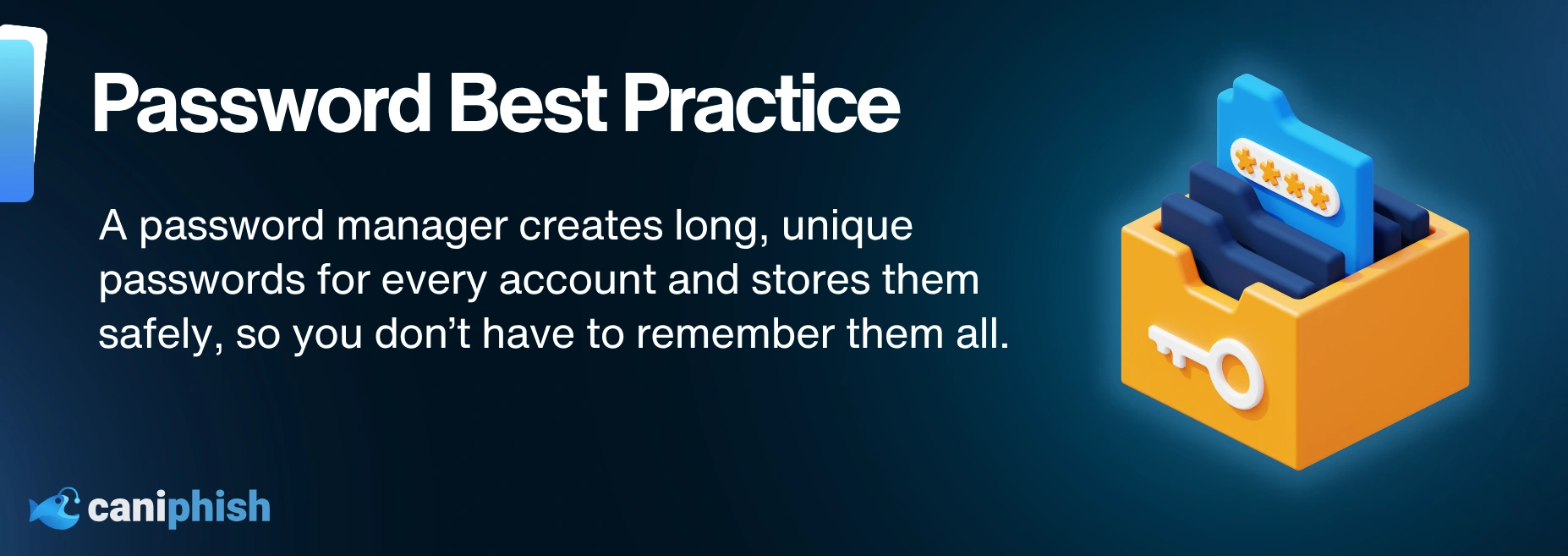
A password manager allows you to use long, unique passwords without having to memorize 47 different combinations, like you are studying for a final exam. If you're not sure where to start, try beginner-friendly options like Bitwarden or 1Password. Bitwarden has a solid free plan, while 1Password offers a free trial if you want to test it before committing.
2. Apple Devices Can’t Get Viruses
You know that person who swears black and blue that Macs are immune to everything? Well, that’s not the case.
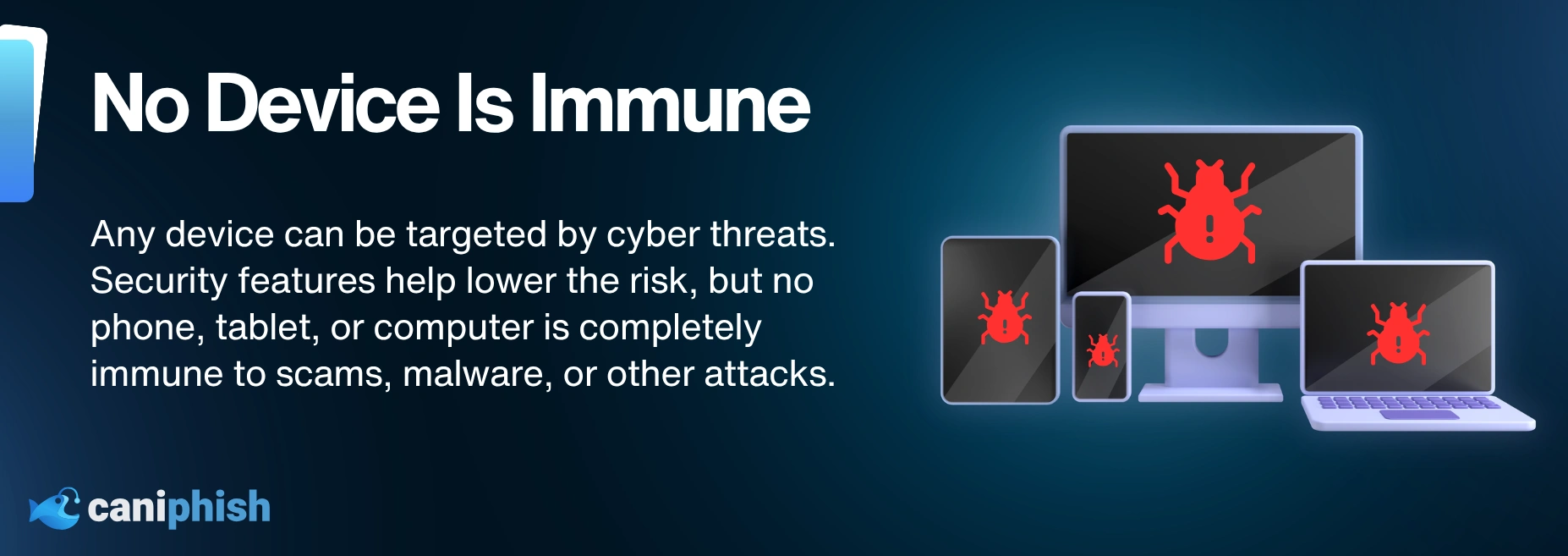
Apple devices are not magic. Yes, macOS and iOS have strong security features, but they are not invulnerable. Malware exists. Adware exists. Info stealers exist. And phishing works on everyone because it doesn't care what logo is on your laptop. Most real-world compromises start with a human mistake, not a technical weakness.
What to do instead:
Treat your Mac like a normal device, not a blessed object from the Apple temple.
Keep it updated. Leave the built-in protections on. Stick to trusted apps. And do not hit “Allow” on random prompts just because they look official.
If a file or pop-up feels weird, do not open it to investigate. The problem is not always the device. It is often PICNIC: problem in chair, not in computer. The Mac may be fine. The click is usually the problem.
3. Delete A File, And It’s Gone Forever
Ever hit delete and imagine it’s like a scene from Mission Impossible, smoke, self-destruct, and no evidence left behind? Yeah… that’s not quite how it works.
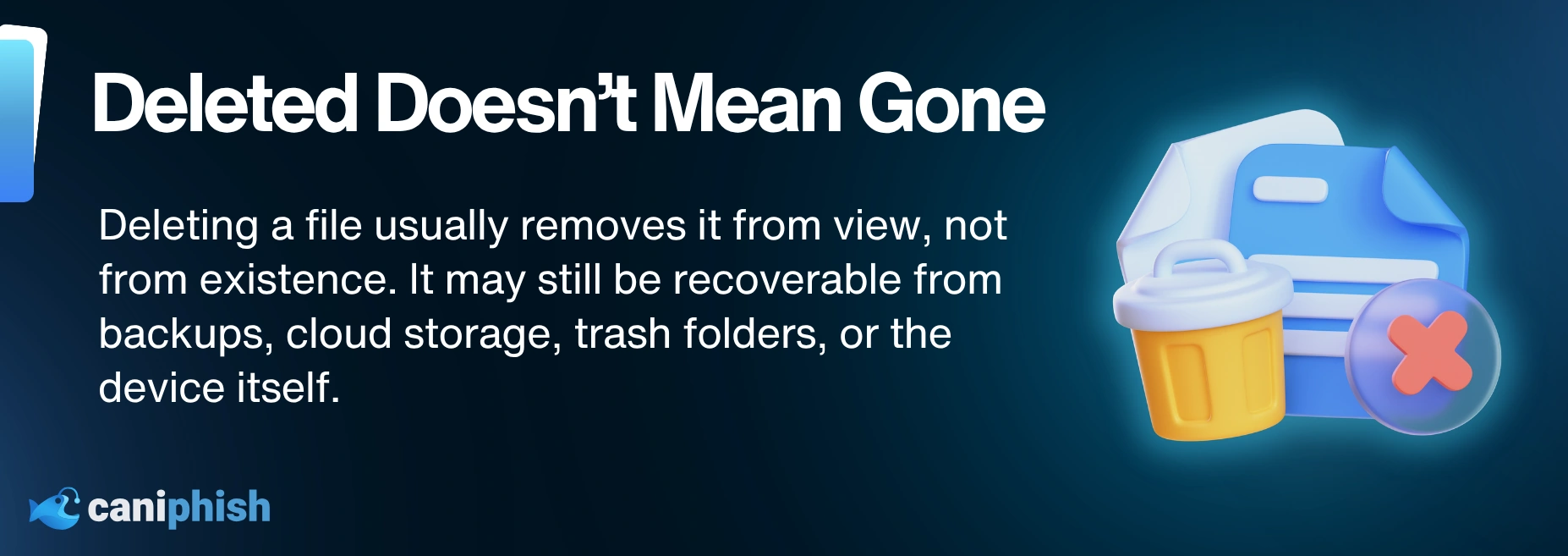
Deleting a file is not really destroying it. It is more like sweeping it under the rug and pretending it is gone. The file can still be in the recycle bin, in the cloud, or sitting in a backup. And if you shared it, congratulations, you’ve only deleted your copy. Files can be recovered using recovery tools.
What to do instead:
If it’s sensitive, don’t just hit delete and call it a day. Empty the bin, check your cloud drive, and have a quick look for older versions too.
It’s the sharing part where the real mess usually lives, so clean that up as well. And if it’s the kind of file you’d panic about if it got leaked, use a secure delete tool. For Windows, try Eraser or File Shredder. For Mac, focus on removing the file from the bin, checking whether it exists in iCloud or shared folders, or use an approved secure wipe option if the device or file is highly sensitive. These tools help make files much harder to recover from that device, but they will not remove copies from cloud storage, backups, shared folders, or other people’s devices.
4. MFA Makes You Unhackable
Turning on MFA doesn’t make you unhackable. It just makes it harder for attackers to get into your accounts. Big difference.
MFA is worth having. Full stop. It shuts down a lot of the basic “stolen password” takeovers. But it is not a superhero cape. If you have ever had a random MFA prompt pop up and thought, “What the hell is that?” that is exactly the point. Some attackers spam prompts, hoping you will hit approve just to make it stop. Others try to steal your session after you log in, so they do not need your password or code again.
What to do instead:
Definitely keep MFA on, but step it up a notch. If you can swing it, grab a physical key like a YubiKey or use passkeys. That’s the equivalent of having a deadbolt on your front door. Prefer app notifications? Be sure to turn on number matching. It’s a game-changer because it stops you from tapping “approve” just to silence your phone.
And for all the people still relying on SMS codes? Hey, it’s better than nothing, but let’s not pretend it’s Fort Knox. One thing people often forget is to keep their recovery info up to date. If you lose your phone and your backup email is from 2000, you’re going to have a bad day.
5. Antivirus Will Catch Everything
Some people treat antivirus software like a magic forcefield. Once it’s installed... boom, you’re invincible.
The reality is, antivirus software is useful, but it’s not a digital bodyguard that's going to take a bullet for you. It’s reactive, but not psychic. It stops malware that’s been seen before. Not so good at stopping you from getting tricked. Modern attacks don’t always look like viruses. They look like convincing emails from your boss. They look like fake Gmail login pages. They could even be a browser exploit that swipes your session cookies without downloading a single file.
What to do instead:
Keep your device updated, use a password manager, and turn on MFA, especially for your email. Stick to official app stores and be picky about what you install.
And if it's a shared family device, lock things down properly. Kids are brilliant at finding “cool” apps and terrible at spotting dodgy ones. That is not a character flaw. That's just being a kid.
6. Change Your Passwords Frequently
Ever been told to change your password every 30 days, like hackers run on a calendar?
Forced password changes usually backfire. People get over it fast, so they recycle the same password, tweak one number, or write it down somewhere “temporarily” that becomes permanent. The result is a “new” password that’s basically the old one in a different hat.
What to do instead:
Use a password manager, which does the hard work for you by creating long, unique passwords. Only change them when there is a real reason, like a breach, a suspicious login, or a phishing attempt. Add MFA on top, because that is what helps when a password eventually gets exposed.
7. Phishing Links and Emails Are Always Obvious
This one is dangerous because it used to be true!
Remember the days when you could have a little chuckle to yourself before hitting delete on a phish? Riddled with typos, weird layouts, and that strange “Dear valued customer, kindly do the needful” energy? Well, those days are long gone, because phishing has upped its game.
Attackers now have better tools, cleaner templates, and AI helping them write emails that sound far more natural than the old-school junk we used to laugh at. Worse, AI lets them pump these messages out at scale, so they can test more angles, target more people, and still blend into the workday.
The real tell is what it wants from you. Log in? Pay something? Download a file? “Confirm” your account? That’s where the trap usually is.
What to do instead:
Look at the request, not the writing. Is it trying to rush you? Is it pushing you to do something? Attackers often use tiny domain changes, lookalike characters, strange endings, or safe-sounding subdomains to make fake websites look legitimate. Always check the actual domain name, not just the words around it. Check the sender, check the link properly, and when in doubt, go to the site yourself instead of clicking the shortcut they gave you.
8. I’m Too Small To Be A Target
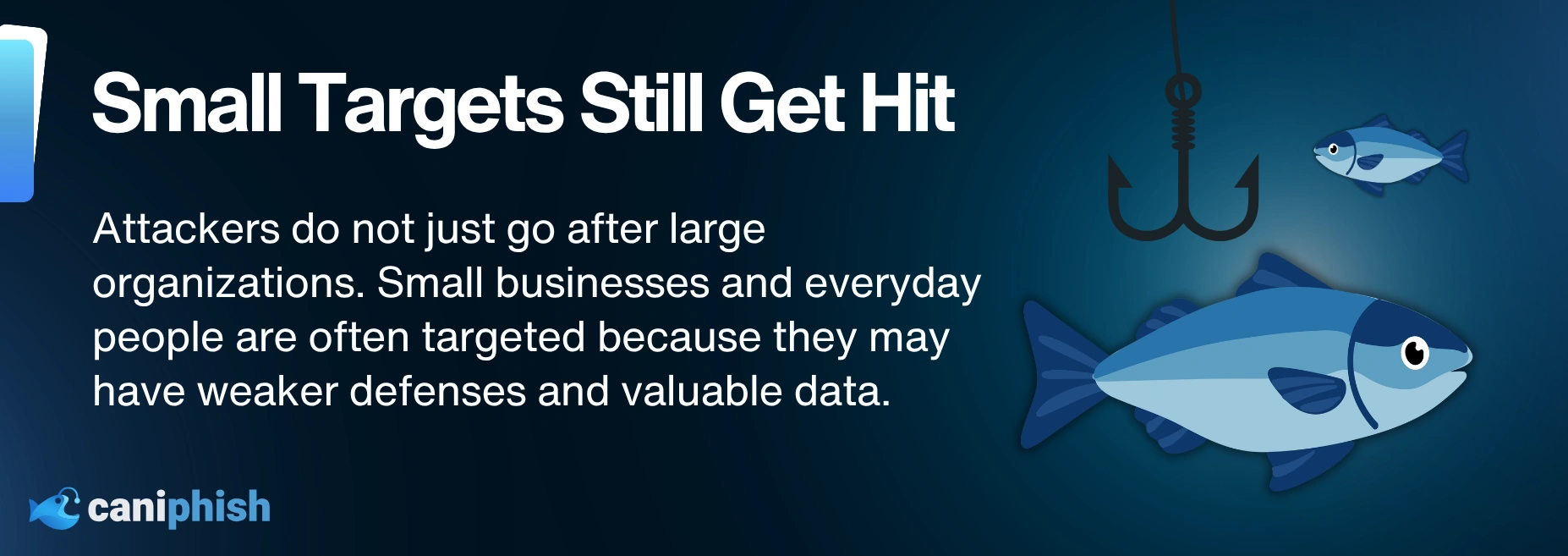
This one is my favorite, because it’s usually said five minutes before someone’s inbox starts sending scams to their entire contact list.
People say this like scammers are picky. Like they are sitting there going, “Nah, leave her alone, she’s not worth it.” That is not how it works. Most scams are sent out in bulk, and the attacker just waits for someone to click the link, reply, or log in without thinking. It is not personal. It is opportunistic.
What to do instead:
Act like you are targetable, because you are. Hackers don’t just go for the big targets. A lot of the time they go for everyday people because there’s usually less protection in place and fewer safeguards. Lock down your email first, because that is the account that can reset all the others. Clean up your recovery options too. Old phone numbers? Old email addresses? Turn on login alerts, and tighten your public info so scammers have less to work with.
9. I Don’t Browse Risky Websites, So I’m Safe
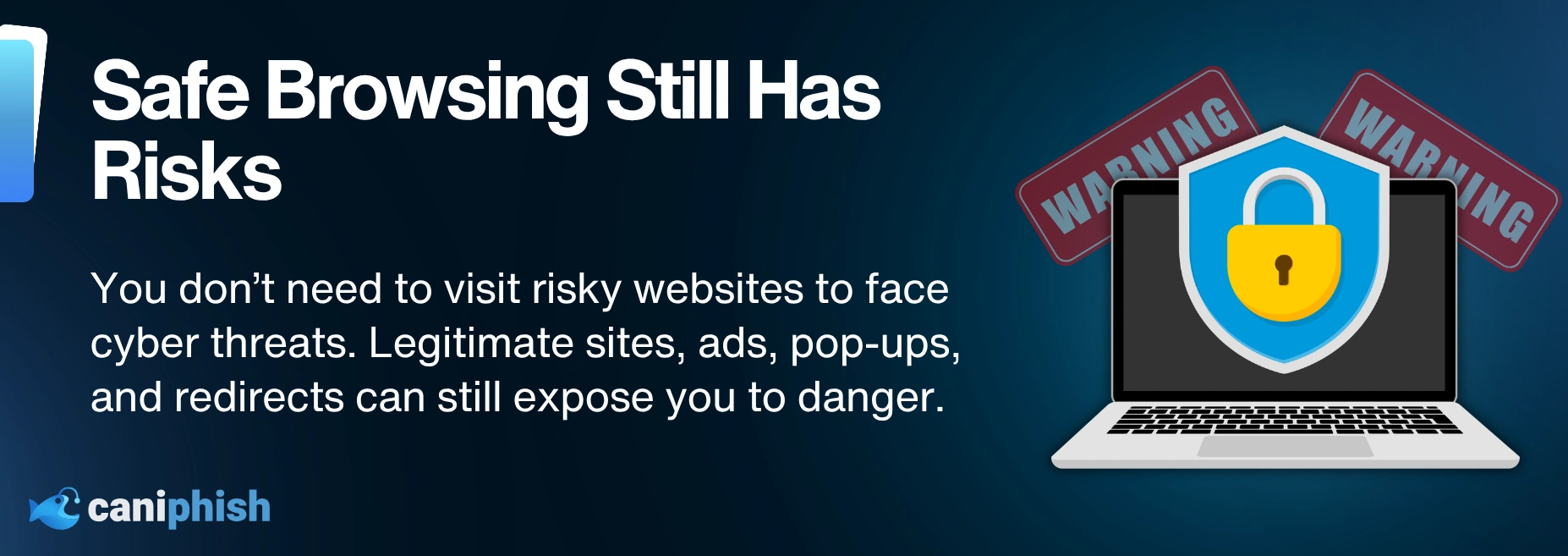
This one is like saying “I don’t go into dark alleys, so I can’t get robbed,” while leaving your front door open.
You can still get caught on normal websites. It is not always the sketchy stuff. Sometimes it is a fake login page sent by text. Sometimes it is a link in an email. Sometimes it is a search result that looks legit enough to trust for two seconds, which is all it takes.
What to do instead:
Stop thinking risky websites are the only problem. You can still get burned on normal-looking sites, fake search results, dodgy ads, or links sent by email or text. Keep your browser and software updated, avoid suspicious links and downloads, and use security tools to provide a second line of defense.
10. Public Wi-Fi With A Password Is Safe

Oh, if this was true, hotels would be the safest place on earth, and airports would basically be a fortress.
A Wi-Fi password is not some special badge of trust. Most of the time, it is just there to stop random people loitering nearby and using the internet for free. The bigger problem is that public Wi-Fi can still be snooped on, copied, or spoofed with a fake network name that looks close enough to fool people. And unless you are checking closely, you probably will not spot the difference. Even if the network is real, public Wi-Fi is still not the place to be doing anything sensitive.
What to do instead:
Public Wi-Fi is fine for things like checking the weather or reading the news. But even then, I’d be careful. Public Wi-Fi is still a gamble.
The safest move is to avoid logging into accounts on it. Even accounts that do not seem that important. If you use the same password for an online shopping account as you do for something more serious, like your email, bank, or work system, then one small login can turn into a much bigger problem.
For anything sensitive, use your own mobile data or a trusted hotspot. Or even better, wait until you are on a network you actually trust.
11. HTTPS Means You Can Trust The Website
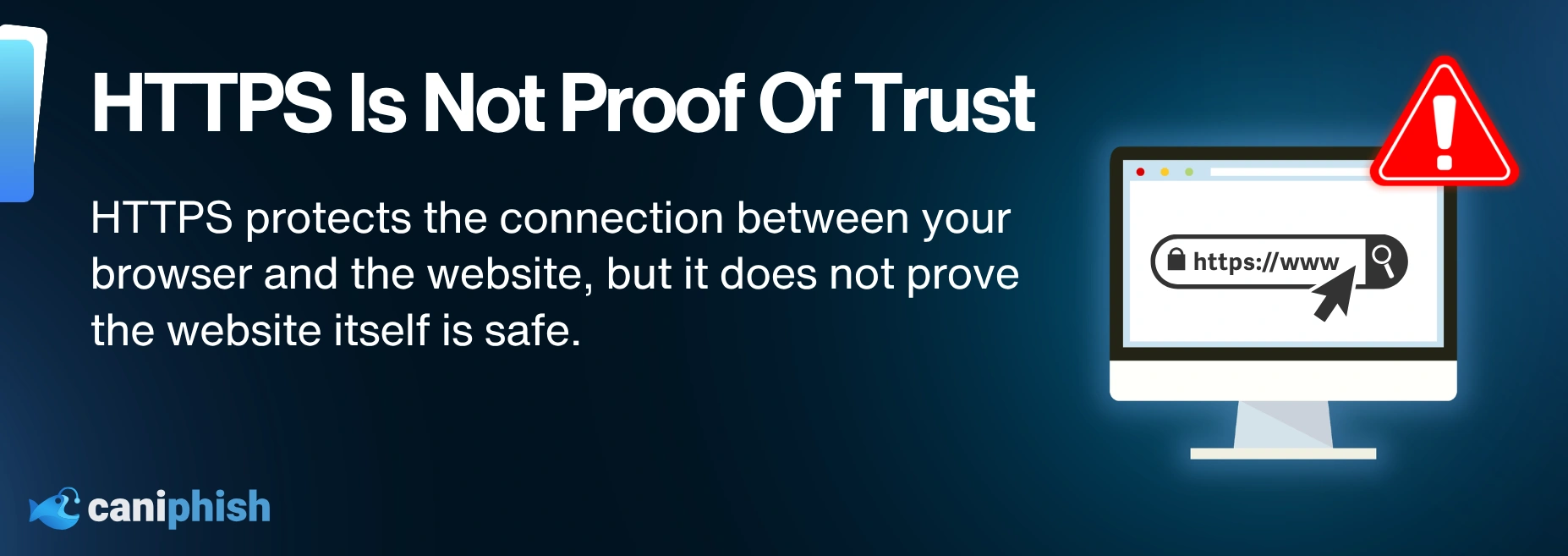
The HTTPS padlock has fooled more people than most hackers ever will.
HTTPS just means the connection is encrypted. It does not mean the site is real, safe, or trustworthy. Seeing that little padlock icon in your browser’s address bar often makes people think, “This site is secure!” Scammers use HTTPS too because it’s easy and it makes their fake login pages look “legit” at a glance. So if you’re using the padlock as your safety check, you’re basically trusting the packaging instead of what’s inside.
What to do instead:
Pause and take a close look at the domain name. If a browser warning pops up, don’t ignore it. But a missing warning doesn’t mean it’s good to go. Because a phishing site can still have HTTPS. If you need to sign in, do it yourself. Go directly to the site. Use a bookmark, not a random link from an email or text. Encryption is good. It’s just not proof you’re in the right place.
12. Incognito Or Private Mode Makes Me Anonymous
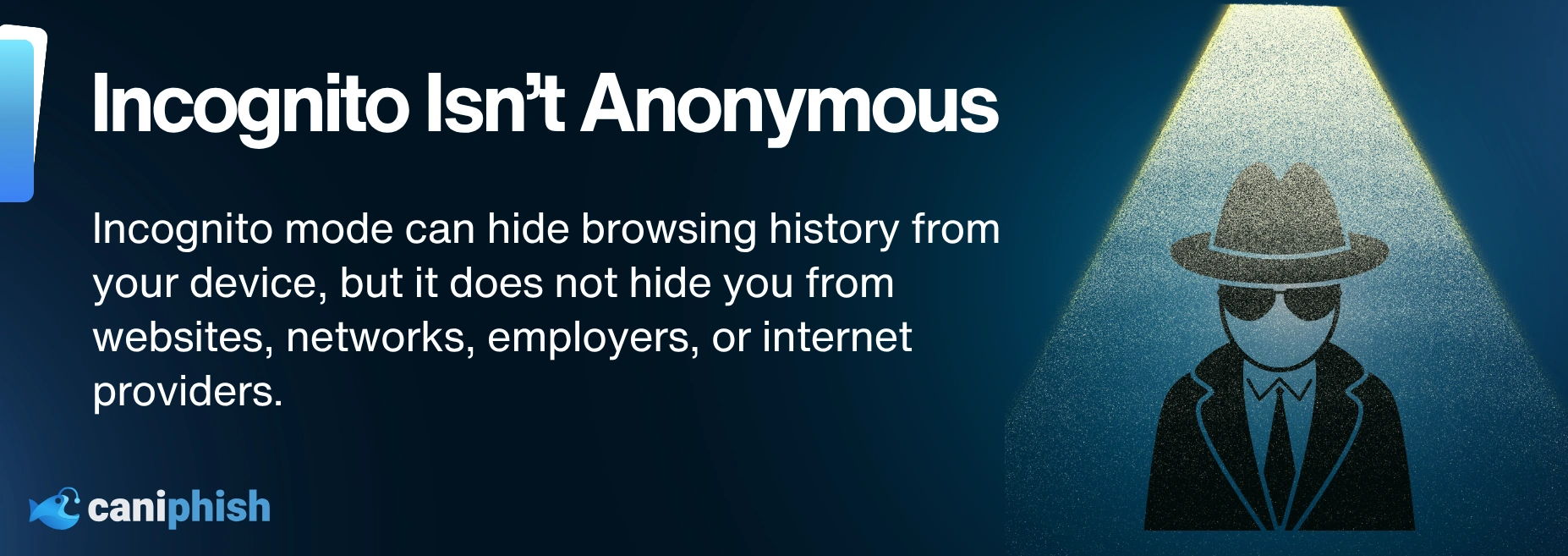
Ah yes… incognito mode. The internet’s version of putting on a cap and sunnies and thinking nobody will recognize you.
Private browsing is not a digital disappearing act. It mostly just stops your browser from saving your browsing record, cookies, and form details on your device. And if you’re signed into an account, you are not “anonymous,” you’re just browsing with less clutter left behind on your laptop.
What to do instead:
Use Incognito for what it is actually for. Browse without your browser keeping a local record of that session after you close the private window. So this comes in handy when you're using a shared work device, a public computer like at a library, or shopping without messing up your recommendations.
But that’s where the privacy ends. Internet providers, websites, workplaces, and schools may still be able to see what you’ve been looking up. So incognito definitely doesn’t make you anonymous. It’s like going to the shops and not keeping the receipt. You still went there. You just didn’t keep the proof on you, and the shop still have its own record.
For more privacy, use a trusted Virtual Private Network (VPN) to help protect your traffic. But even then, it does not make you completely invisible.
Wrapping Up
So there you have it.
Twelve “security tips” (misconceptions) people repeat with full confidence, even though they cause a lot of the mess they claim to prevent. There’s no magic security button. If there was, I’d be out of a job and scammers would have to find a new hobby. The reality is boring. Use a password manager. Keep your stuff updated. Back up what you’d be upset to lose. Add strong sign-in protection where you can.
Also, don’t believe every “security tip” you hear. If it sounds too simple, it probably is.
Create better passwords
Learn 10 different techniques you can use to make a password that's not only uncrackable, but also memorable!
Read the blog
An Operations Analyst on a mission to make the internet safer by helping people stay a step ahead of cyber threats.